
How to Do a Technical SEO Audit: A Step-by-Step Checklist
The checks that show whether search engines can crawl, render and index a B2B site, in the order to run them, and how to rank what you find.

A technical SEO audit checks whether search engines can crawl, render and index your website, and what stops them. Run it in a fixed order: set the scope and key pages, collect Search Console data, crawl the site, then check indexing, status codes, duplicates, internal links, structured data, JavaScript, mobile pages, speed and hreflang. Finish by ranking what you find by its effect on the pages that bring in enquiries and the effort to fix it.
An audit is useful only if it changes something. Run a crawler over a B2B site and you get hundreds of warnings, many of them harmless, while the rule that keeps a product line out of Google sits on page four of the export. This checklist is a way to avoid that: it starts from the pages that matter, works through the checks in the order that saves time, and ends with a short list your developers can act on. A small team with Search Console access and a crawler tool can do most of it. For the concepts behind each check, see our technical SEO guide.
What to prepare before a technical SEO audit
A technical SEO audit looks at how a site is delivered, not at how well its pages are written. Prepare four things first:
- Scope. Write down the domains, subdomains, languages and page types you will cover, and what you will leave out.
- Key pages. List the pages that bring in enquiries: product, application and industry pages, quote forms and contact pages, in each language. Group them by template, because that is where most fixes happen.
- Access. You need Search Console, ideally a Domain property, plus analytics, a staging site if you have one, and server access logs if you can get them.
- A crawler tool. Any tool that follows links, records status codes and can render JavaScript will do. The method matters more than the brand.
The technical SEO audit checklist at a glance
Each step builds on the one before. A page that cannot be crawled never reaches the later checks, so there is no point judging its markup first.
| Step | What you check | Where the data comes from |
|---|---|---|
| 1 | Google’s own view of the site | Search Console reports |
| 2 | A full site crawl | Crawler tool, sitemaps, server logs |
| 3 | Indexing status and crawl access | Page indexing report, robots.txt |
| 4 | Status codes and redirect chains | Crawl, server logs |
| 5 | Duplicate content, titles and meta tags | Crawl, URL Inspection |
| 6 | Internal links and orphan pages | Crawl, sitemaps, analytics |
| 7 | Structured data | Rich Results Test, Enhancements reports |
| 8 | JavaScript rendering | Raw and rendered HTML, URL Inspection |
| 9 | Mobile usability and page speed | Phone tests, Lighthouse, Core Web Vitals report |
| 10 | hreflang | Crawl, page source |
| 11 | Priorities | All of the above, against your key pages |
| 12 | Fixes and confirmation | Staging, live tests, a second crawl |
Step 1: Collect what Search Console already knows
Search Console is Google’s own record of your site, so export it before you crawl anything:
- Page indexing report: the indexed count, its trend and the reasons pages are left out.
- Sitemaps report: whether your files are read, and how many submitted URLs are indexed.
- Performance report: which pages actually earn clicks. Compare them with your key pages.
- Crawl Stats report: requests, responses and host problems. Google says sites with fewer than a thousand pages should not need it.
- Other flags: the Core Web Vitals and Enhancements reports, Manual Actions and Security Issues.
These reports show samples. At the time of writing (November 2026), Search Console Help says the example lists in the Page indexing report stop at 1,000 rows, which is why you also need a crawl.
Step 2: Run a full site crawl
A site crawl shows what a search engine can reach by following links. Your settings decide what you see:
- Crawl as a smartphone. Google uses the mobile version of a site for indexing and ranking.
- Add your sitemaps as a source. The tool can then flag URLs that are listed but not linked.
- Limit filter parameters. A catalog with combinable filters can create URLs without end, so crawl a sample of each template first on a large site.
- Protect the server. Crawl at a moderate speed and warn IT, so a firewall does not block the tool and hide real results.
- Run two passes on JavaScript sites. One without rendering and one with it gives you the comparison you need in Step 8.
Export each URL with its status code, indexability, canonical tag, title, meta description, H1, click depth and number of internal links. If you have server logs, add them: they show what Googlebot really requests and which key pages it rarely visits. Because anyone can claim to be Googlebot, verify requests with a reverse DNS lookup or Google’s published IP ranges.
Step 3: Check indexing status and crawl access
Now line up three lists: your key pages, the crawl and the Page indexing report. For each key page, ask whether it can be crawled, whether it allows indexing, and whether it is indexed. Then check the causes:
- robots.txt. Read the file yourself and look for leftover
Disallowrules. HTTP Archive’s 2025 Web Almanac reports that 85% of robots.txt requests returned a 200 status, but it adds that a 200 shows only that the file exists, not that its rules are right. - noindex. Look in templates and in HTTP headers, because PDF files carry it there.
- Sitemaps. They should list only canonical, indexable URLs that return 200.
- URL Inspection. Use it on key pages to see the last crawl, the indexing status and any block.
- AI access. Check robots.txt and your CDN against your policy on AI crawlers. Also check the Search generative AI setting in Search Console, available to all sites since August 31, 2026; the default includes your site.
For what each reason in the report means, see our guide to pages Google won’t index.
Step 4: Check status codes and redirect chains
Sort the crawl by status code. Each class points to a different fault:
| Status codes | What to look for | Usual fix |
|---|---|---|
| 2xx | Soft 404s: pages that return 200 but show an error or nothing | Return 404 or 410, or add content |
| 3xx | Redirect chains, loops, internal links that pass through a redirect | Link to the final URL; use one permanent redirect |
| 4xx | Internal links and sitemap entries pointing to missing pages | Fix the links; redirect if the page moved |
| 5xx | Errors and timeouts, especially under load | Fix the hosting, the application or the firewall rule |
Do not plan around limits. Google’s crawler documentation (2026) says Googlebot generally follows up to 10 redirect hops, and that URLs which keep returning server errors are eventually dropped from the index. Long chains usually record past redesigns, so test old URLs from before your last one. If you are about to change URLs again, our guide to website migration SEO covers the redirect mapping.
Step 6: Review internal links and orphan pages
Internal links decide how easily crawlers and buyers reach a page. For each key page, note the number of internal links and the clicks needed from the home page, and check that links are real <a> elements with an href. Google says every page you care about should have a link from at least one other page on your site.
Orphan pages are URLs that appear in your sitemaps, analytics or logs but that the crawl never reached. On B2B sites they are often campaign landing pages, old products and datasheets. Link the useful ones from a category or related page, and retire the rest.
Step 7: Validate structured data
You do not need to test every URL. Run one URL per template through the Rich Results Test, then use the Enhancements reports in Search Console to see how those templates behave across the site. Also check by eye that the markup matches what the page shows, because Google’s quality rules are not all testable by tool. Do not log missing FAQ markup as a fault: Google stopped showing FAQ rich results on May 7, 2026. Our schema markup guide explains which types to expect on which pages.
Step 8: Test JavaScript rendering
Compare the raw HTML with the rendered HTML for each template, using your two crawl passes or the crawled page view in URL Inspection. Note anything that exists only after rendering: main content, specification tables, <a> links, canonical tags and robots rules.
- Links and content behind clicks. Google’s crawlers do not click buttons, so tabs and "load more" controls that fetch content on click can hide it.
- Canonical tags. The URL in the original HTML and the one after rendering should match.
- noindex in the original code. Google says it may skip rendering when it sees the tag, so a script cannot reliably remove it.
- Other crawlers. Google renders pages, but a December 2024 study by Vercel and MERJ found that the AI crawlers of OpenAI, Anthropic, Meta, ByteDance and Perplexity did not.
Step 9: Check mobile usability and page speed
Mobile usability now needs a hands-on check. Google retired its Mobile Usability report and Mobile-Friendly Test on December 1, 2023, and pointed to tools such as Lighthouse. Open each key template on a phone and test the menu, specification tables, forms and downloads. Then compare mobile and desktop pages: Google says the mobile version should contain the same primary content, because that is the version it indexes.
Page speed comes from the Core Web Vitals report, which uses real visitor data. Google’s targets are Largest Contentful Paint within 2.5 seconds, Interaction to Next Paint under 200 milliseconds and Cumulative Layout Shift under 0.1. The 2025 Web Almanac’s Chrome user data shows that in July 2025, 48% of sites on mobile and 56% on desktop had good results on all three, so a failing template is not unusual. In an audit, note which templates fail and hand them to development. Our guide on how to use PageSpeed Insights explains how to read the results.
Step 10: Check hreflang on language versions
Skip this step if you run one language. Otherwise rely on the crawl, because Search Console no longer has an International Targeting report. Check four things on a sample of each language:
- Each version lists itself and all other versions, with full URLs.
- Every pair points back; Google ignores the tags if two pages do not point to each other.
- Each target returns 200, can be indexed and is not redirected.
- The canonical tag stays in the same language, and each language version points to itself.
Step 11: Prioritize the findings
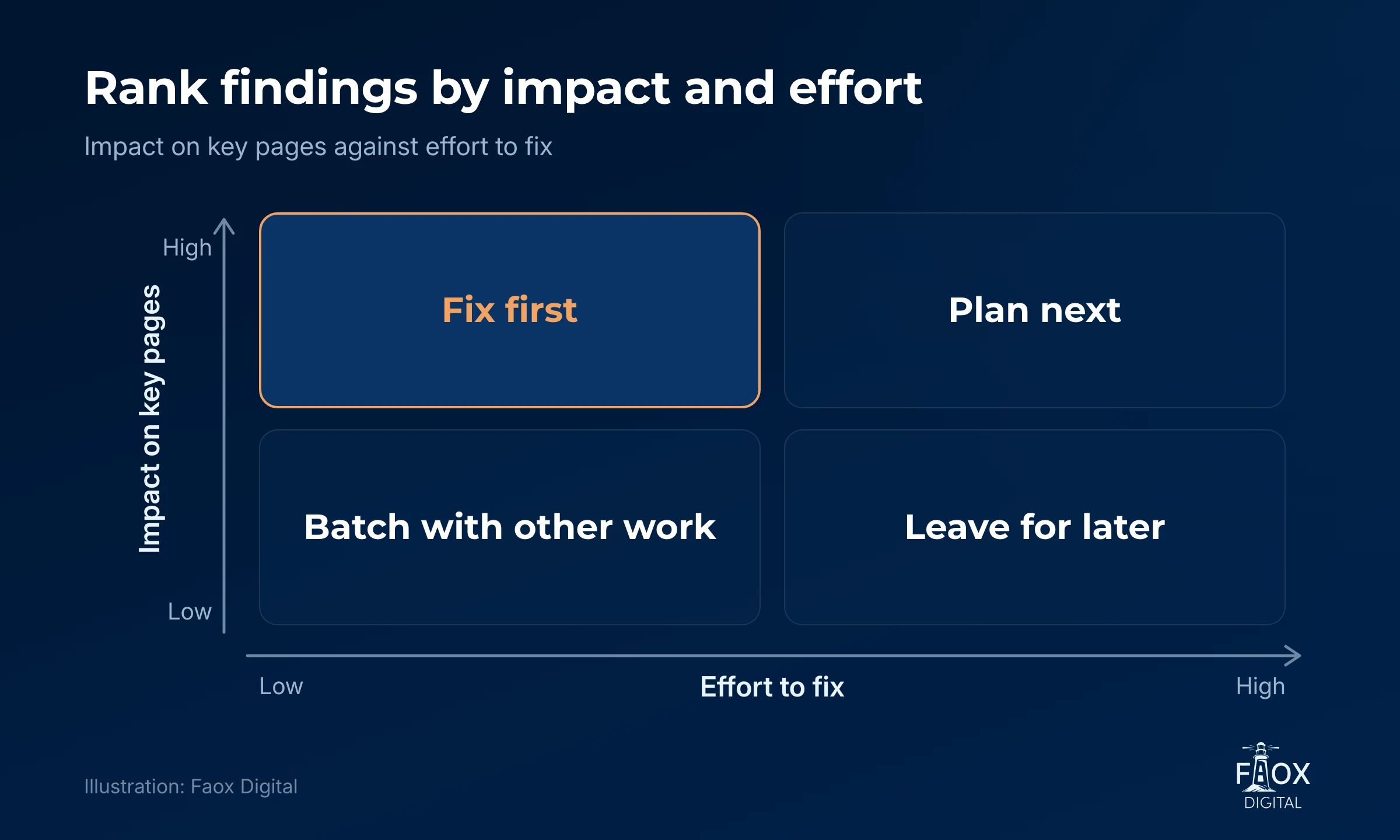
Prioritizing findings is where an audit earns its cost. Tools assign severity labels that know nothing about your business, and a warning on thousands of old URLs can matter less than one rule on a product template. Ask three questions of each finding: does it touch key pages, does it block crawling or indexing or only weaken a signal, and how much work is the fix?
| Priority | Typical findings | When to act |
|---|---|---|
| Blocker | noindex or robots.txt rules on key templates, server errors, key pages returning 404 | Now |
| High | Wrong canonical tags, redirect chains on key pages, key pages with no internal links, main content only in JavaScript | Next release |
| Medium | Repeated titles in a template, filter URLs open to crawling, structured data errors | Planned work |
| Low | 404s on pages with no links or traffic, warnings on pages that bring in nothing | Batch with other work |
Write each finding so a developer can act on it: the issue, the evidence, the affected template, the fix and how to confirm it. Merge findings with one cause, so one template fault appears as one line and not as a thousand URLs.
Step 12: How to fix technical SEO issues and confirm the fix
Work through the list in priority order:
- Fix the source. Change the template, CMS setting or server rule, not one page at a time.
- Test on staging. Crawl it with the same settings and check only what changed.
- Release and test live. Use the live test in URL Inspection on a sample, where the issue can be tested.
- Ask Google to validate. Click Validate fix on indexing issues; Search Console Help (November 2026) says this typically takes up to about two weeks and sometimes much longer.
- Crawl again. Compare the result with your first export, and keep both.
Then keep watching. Look at Search Console monthly, recheck after each major release, and repeat the audit when the site, platform or catalog changes. If the causes sit in systems your team cannot change alone, the next question is what outside help should deliver; our article on technical audit deliverables sets that out.
Technical SEO checklist: the pass or fail version
Use this as a final check on your key pages:
- Each key page returns 200, allows indexing and is indexed
- robots.txt and
noindexrules block nothing you want found - Sitemaps list only canonical, indexable URLs
- No internal link passes through a redirect or ends in a 404
- Google’s chosen canonical matches yours on key pages
- Titles and descriptions are not repeated across a template
- Each key page has internal links, and useful orphan pages are linked
- Structured data is valid and matches what the page shows
- Main content and links are in the initial HTML
- Mobile pages carry the same primary content as desktop pages
- Language versions list and point back to each other
How Faox Digital runs a technical SEO audit
The audit and baseline is the first of five steps in every Faox Digital SEO project: we check what the site ranks for, who it competes with and whether search engines and AI tools can read it. The findings become priorities you see, with the reasons, before any fixes begin.
Key takeaways
- Start from the pages that bring in enquiries, not from the tool’s list of warnings.
- Check in order: crawl access and indexing first, then status codes, duplicates and links, then enhancements.
- Rank findings by impact on key pages and effort to fix, and merge those with one cause.
- Fix problems in templates, settings and server rules, then confirm with a live test and a second crawl.
- Repeat the checks after major releases, because most faults arrive with a change.
Frequently asked questions
What does a technical SEO audit check?
It checks whether search engines can reach, read and index your pages: robots.txt, sitemaps, status codes, redirects, canonical tags, internal links, structured data, JavaScript rendering, mobile pages, speed and hreflang. It does not judge how well the content is written, and it ends with a ranked list of fixes.
How often should you do a technical SEO audit?
Google gives no fixed interval. We suggest a full audit when the site, platform or catalog changes, and at least a lighter review each year, with a monthly look at Search Console in between. Large sites that change daily need more frequent checks.
How do I check technical SEO without a full audit?
Use four quick checks: the Page indexing report for what is left out, URL Inspection on your key pages, a read of robots.txt, and a phone test of your main templates. They will not find everything, but they catch the most damaging blocks.
What should a technical SEO audit checklist include in 2026?
The usual checks still apply. Add your AI crawler rules in robots.txt and the CDN, the Search generative AI setting in Search Console, and a comparison of raw and rendered HTML. You can drop FAQ rich results, which Google no longer shows.
Sources
Let’s talk
Where do you want to be found?
Tell us the searches that matter to your business. We will review your site and tell you plainly what to fix first, including what you can do yourself.