
Indexing Issues: Why Google Isn’t Indexing Your Pages and How to Fix It
How to tell real indexing issues from normal exclusions in Search Console, find the cause on the pages that matter and fix it at the source.
Indexing issues are the reasons Google leaves a page out of its search index, and the Page indexing report in Search Console names a reason for each URL it knows about. On B2B sites the usual causes are stray noindex rules, robots.txt blocks, soft 404s, broken redirects, duplicate pages, thin content and missing internal links. To fix them, set aside pages that should stay out, inspect the pages that matter with the URL Inspection tool, correct the cause in the template or server rule, and ask Google to validate the fix.
A page that is not in Google’s index cannot appear in Google Search or as a supporting link in AI Overviews, however good it is. For a B2B company, that can mean a product line or a language version that buyers never find. This article shows how to find page indexing issues, which ones deserve your time and how to fix their causes. For how indexing fits with crawling and the rest of the foundation, see our technical SEO guide.
How to find indexing issues in Google Search Console
The Page indexing report shows the status of every URL Google knows about in your property, grouped by the reason it is not indexed. The URL Inspection tool explains one URL at a time. In the report, start with three things:
- The reasons table. Each reason has a Source column, and Google says you can generally fix only issues whose source is Website.
- The sitemap filter. It separates the URLs you submitted from those Google found by itself.
- The trend. Google expects the indexed count to rise gradually as a site grows. If it drops without a rise in errors, Google says to look for robots.txt rules,
noindextags or required logins.
Each reason opens a list of example URLs. At the time of writing (November 2026), Search Console Help says the list stops at 1,000 rows and may not show every affected URL. The same page says a site with fewer than 500 pages probably does not need the report and can check key pages with site: searches, though Google notes that site: does not necessarily return every indexed URL.
Which pages should stay out of the index
Not indexed does not always mean something is wrong. Google says the aim is an indexed canonical version of every important page, and it tells site owners not to expect every URL to be indexed. So sort your pages before you fix anything:
- Belongs in the index: product, category, application, industry and contact pages, plus the guides and datasheets buyers search for, in every language you sell in.
- Usually stays out: filtered and sorted catalog URLs that repeat the same products, tracking URLs, old URLs that redirect, internal search results, thank-you pages and login areas.
Everything below applies to the first list. A report full of filter URLs marked as duplicates means the system is working.
What each reason in the Page indexing report means
Search Console Help lists these reasons at the time of writing (November 2026). Labels can change, so go by your own report. The table runs in three groups: fix when the page matters, diagnose first, and usually no action.
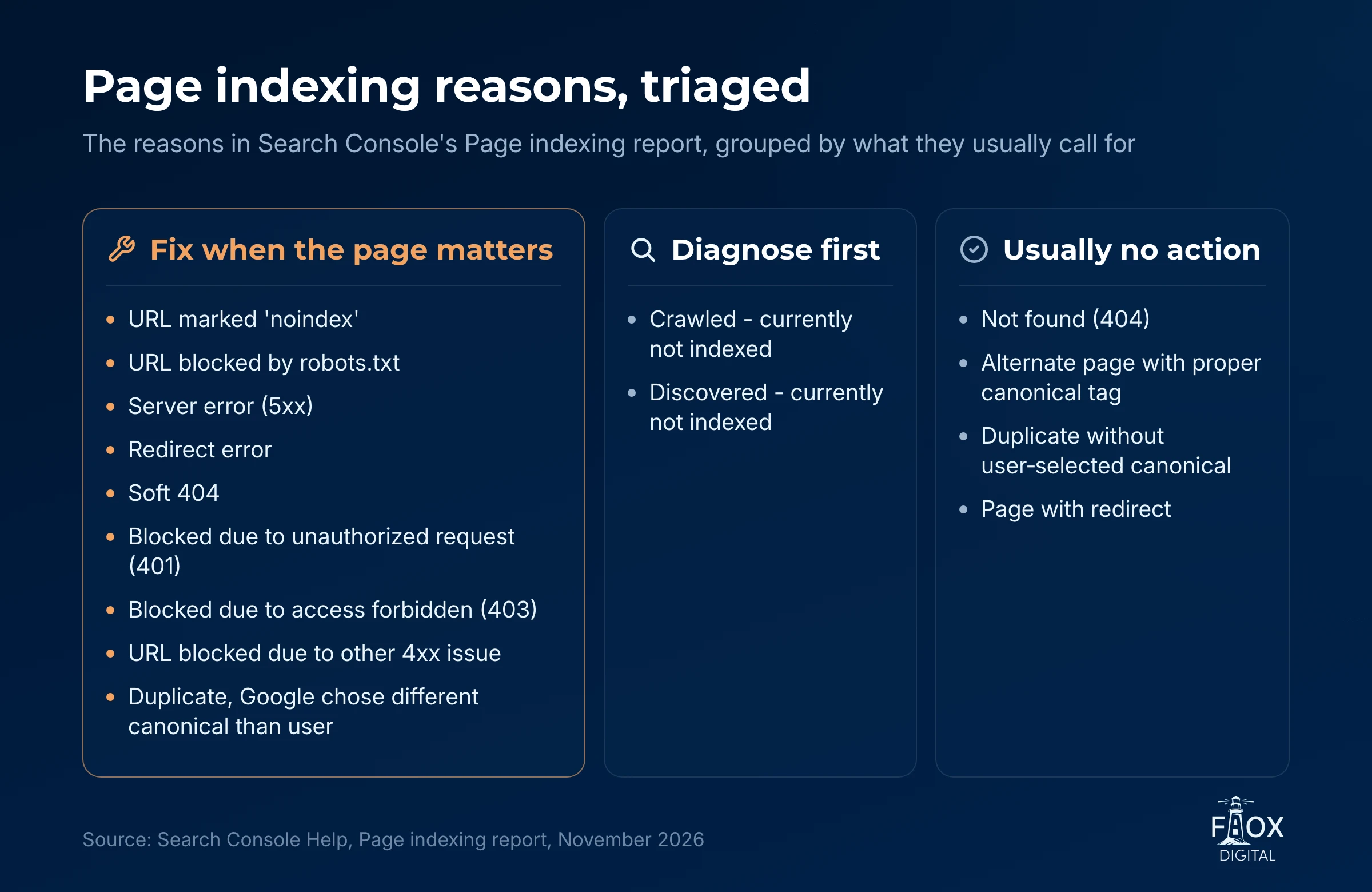
| Reason | What it means | What to do |
|---|---|---|
| URL marked ‘noindex’ | The page asks not to be indexed | Remove the rule |
| URL blocked by robots.txt | A rule stops crawling | Remove the rule if it is a mistake |
| Server error (5xx) | Your server failed to answer | Check hosting, firewall and host status in Crawl Stats |
| Redirect error | A chain too long, a loop, an overlong URL or a bad URL in the chain | Point the old URL straight at the final page |
| Soft 404 | Returns success but looks like an error or is empty | Return 404 if gone; add content if real |
| Blocked due to unauthorized request (401) | The page asks for a login | Remove the login or allow verified Googlebot |
| Blocked due to access forbidden (403) | The server refuses Googlebot | Correct the server or firewall rule |
| URL blocked due to other 4xx issue | Another 4xx response | Debug it with URL Inspection |
| Duplicate, Google chose different canonical than user | Google prefers another URL to the one you declared | Compare the pages and align your signals |
| Crawled - currently not indexed | Fetched but not indexed | Common; diagnose important pages only |
| Discovered - currently not indexed | Known but not crawled yet | Check server capacity and internal links |
| Not found (404) | The page does not exist | Fine if removed on purpose; redirect if it moved |
| Alternate page with proper canonical tag | An alternate points to an indexed canonical | Nothing |
| Duplicate without user-selected canonical | A duplicate with no declared canonical; Google picked another URL | Nothing, unless Google picked the wrong one |
| Page with redirect | The URL redirects; the target may be indexed | Nothing, if intended |
Two warnings sit outside this list. Indexed, though blocked by robots.txt means links brought the page into the index even though Google could not read it. Page indexed without content means Google could not read the page, possibly because of cloaking or an unsupported format. Inspect both.
Crawled or discovered: two statuses that get confused
Discovered - currently not indexed means Google knows the URL but has not crawled it. Google says it typically expected a crawl to overload the site and rescheduled, which is why the last crawl date is empty. So look at capacity and priorities: work out why a website is slow, cut wasted URLs such as filter combinations, and link to the pages that matter from pages Google already crawls.
Crawled - currently not indexed means Google fetched the page and left it out. At the time of writing, Search Console Help calls this a common message that does not necessarily need attention, so act only on your important pages. First rule out technical causes with URL Inspection: a block, the wrong canonical or content that loads only through JavaScript. Then judge the page itself: Google’s guide to how Search works names low-quality content as a common indexing issue. Resubmitting does not help, since Google says repeat requests will not get a URL crawled any faster.
Blocks you set yourself: noindex, robots.txt and logins
When a whole section disappears, look here first: a redesign can carry a staging setting into production.
- noindex can sit in a robots meta tag or an
X-Robots-TagHTTP header, which is how PDF datasheets get excluded, so check response headers as well as page source. On JavaScript sites, do not shipnoindexin the original code and remove it later: Google says it may skip rendering when it sees the tag. - robots.txt stops crawling, not indexing, and hides any
noindexon the page, so URL Inspection always shows "Indexing allowed?" as Yes for a blocked page. To keep a page out, remove the block and usenoindex. To get it in, remove the block. - Logins and firewalls. Googlebot never sends credentials, so a login is correct for a dealer portal and a fault on a public product page. Google also warns that firewalls and DoS protection can block Googlebot because it often sends more requests than a human visitor.
Duplicate content and the Google-selected canonical
Duplicate content means URLs with the same or very similar content. Google groups them and picks one, the canonical, to show. B2B sites create duplicates through filter parameters, products listed in several categories and near-identical variants. URL Inspection shows the two fields to compare: User-declared canonical and Google-selected canonical.
If Google chose a different canonical than yours, open the tested page, your canonical and Google’s choice in a browser. Google will not choose a canonical that is not similar to the page, so check that your tag points to a page with the same content and that a CMS or plugin has not written a wrong tag. If pages are really different, make the difference clear on the page. If separate English sites for the US, the UK and Australia carry the same content, Google suggests hreflang annotations so the right page surfaces.
Allow time after a fix: Google’s canonicalization guide (2026) says pages can stay in a duplicate cluster for up to two weeks. Do not use noindex to choose between duplicates, because it blocks the page from Search completely. Our guide to fixing duplicate pages covers the methods.
Thin content and soft 404s
Thin content is our shorthand for pages with too little of their own to earn a place in the index. Google’s guidance on people-first content asks whether a page offers original information, a substantial description and real value compared with other results. On B2B sites, look at product pages with only a name and a photo, empty categories, and application pages where only the industry name changes. Add what buyers need, such as specifications, standards and downloads, or merge weak pages into one stronger page and redirect the rest. Mass-generated text is no way out: Google’s spam policies treat many pages generated to manipulate rankings, with little value for users, as scaled content abuse.
A soft 404 returns a success code but looks to Google like an error or an empty page. On catalogs it usually means a discontinued product with a "no longer available" message, a filter with no results, or removed pages redirected to the home page, a pattern Google’s 404 help warns about. If a page is gone, return 404 or 410, which Google treats the same. If it is real, add content, then run a live test and open "View tested page" to see what Google rendered.
Redirect chains, redirect errors and 404s
A Page with redirect entry is normal. A Redirect error is not. Redirect chains build up over redesigns: http to https, then to www, then to a new path. Google’s crawler documentation (2026) says Googlebot generally follows up to 10 redirect hops. Point every old URL straight at its final address and update internal links to match. If indexed pages fall right after a redesign, start with the redirects and our migration checklist.
Many Not found (404) entries can be left alone. Google says 404s do not harm indexing or ranking and recommends fixing only those you link to yourself or list in a sitemap.
Missing internal links and pages Google cannot find
If a page is not in the report at all, Google may not know it exists, and URL Inspection shows "URL is unknown to Google". Google learns about a page through a sitemap, a crawl request or a link, and its link guidance says every page you care about needs a link from at least one other page on your site.
Missing internal links are easy to overlook on B2B sites: product pages reached only through a JavaScript filter or the site search, or a new language folder left out of the navigation. Compare your sitemap with a crawler’s list of linked pages to find these orphan pages, then link them from category and related pages. A sitemap helps discovery, but it does not replace links.
How to use URL Inspection and request indexing
URL Inspection reports on Google’s indexed version of a URL, not the live page. Read its fields in this order:
| Field | What it tells you | If it fails |
|---|---|---|
| Crawl allowed? | Whether robots.txt lets Google in | Remove the blocking rule |
| Page fetch | Whether Google got the page from your server | Check the status code, login, firewall and server |
| Indexing allowed? | Whether the page blocks indexing | Remove noindex |
| User-declared and Google-selected canonical | Whether Google chose your URL | Compare the pages and align your signals |
| Referring page and Sitemaps | How Google found the URL | Add internal links and list the URL in a sitemap |
"URL is on Google" means the page is eligible to appear, not certain to. "URL is on Google, but has issues" means an enhancement has a problem, such as malformed markup; see our guide to structured data for B2B.
Test live URL checks the page as it is now, so use it to confirm a fix. It cannot test canonical selection, quality or the crawled and discovered statuses, so "URL is available to Google" does not predict indexing.
Request indexing sends a URL to the indexing queue if it passes a quick check. At the time of writing (November 2026), Search Console Help says indexing typically takes a day or so but can take much longer, that there is a daily limit, and that a request does not ensure indexing. Keep it for a few key pages, and use a sitemap with accurate lastmod dates when many pages change.
How to fix indexing issues step by step
Most indexing problems come from a template, a CMS setting or a server rule rather than a single page.
- List the pages that matter. Put them in a sitemap of their own, for every language.
- Filter the report by that sitemap. Note each reason with Website as its source.
- Inspect one example URL per reason. Read the crawl, fetch, indexing and canonical fields.
- Find what the affected URLs share. Look for a common template, plugin, folder or server rule.
- Fix the source and test live. Run Test live URL on a few pages, where the issue can be tested.
- Click Validate fix. Do it once every instance is fixed, because validation stops if Google finds one left.
- Recheck after each release. A template change can cause an error spike.
Search Console Help (November 2026) says validation typically takes up to about two weeks and sometimes much longer, and that a request limited to a sitemap of key pages can finish faster.
Some pages will stay out even then, because Google does not promise to crawl, index or show any page. If the causes spread across templates and languages and you want outside help, the next question is what an audit should hand you; our article on technical audit deliverables sets that out.
How Faox Digital handles indexing problems
At Faox Digital, indexing problems are part of the audit and baseline that starts every SEO project, where we check whether search engines and AI tools can read the site. The fixes to architecture, structured data and crawler access come next, as the groundwork for content, because a page that is not indexed cannot rank.
Key takeaways
- Aim for an indexed canonical version of every important page, not for every URL on the site.
- Filter the Page indexing report by your key pages and ignore correct exclusions.
- Discovered - currently not indexed points to capacity and priorities; Crawled - currently not indexed calls for a check for hidden blocks, then for page value.
- Fix the shared cause in the template or server rule, then validate; a request alone does not get a page indexed.
Frequently asked questions
What are indexing issues on a site?
They are the conditions that keep a page out of Google’s index, such as a noindex rule, a server error or a duplicate. Not all of them are faults: duplicates, redirects and deliberately removed pages are often excluded correctly.
How do I check for indexing issues in Google?
Open the Page indexing report in Search Console and read the reasons, filtered to the pages that matter. For one URL, use the URL Inspection tool.
How long does Google take to index a page after a fix?
Google’s recrawl documentation (2025) says crawling can take from a few days to a few weeks. Inclusion is never certain, even after a request.
Can a tool or the Indexing API force Google to index a page?
No. Google’s 2026 quickstart says the Indexing API can be used only for pages with job postings or livestream videos, and a crawl request does not ensure inclusion. Be wary of any service that promises forced indexing.
Sources
- Search Console Help: Page indexing report, accessed November 2026
- Search Console Help: URL Inspection tool, accessed November 2026
- Google Search Central: How Google Search works, 2025
- Google Search Central: Fix canonicalization issues, 2026
Let’s talk
Where do you want to be found?
Tell us the searches that matter to your business. We will review your site and tell you plainly what to fix first, including what you can do yourself.