
Email Automation for B2B: How to Set Up Triggers and Your First Workflows
How a B2B company sets up email automation, from triggers, delays and conditional branches to exit rules, frequency limits, personalization, testing and sales notifications, with three first workflows.
Email automation sends emails and alerts when a contact does something or a date arrives, instead of when someone remembers. To set up your first workflows, pick one trigger (a form submission, a content download or a trade fair import), write two to four emails with delays between them, add a conditional branch for people who click or reply, set exit rules, limit how often anyone is emailed, test with real records and notify sales when a contact is ready.
Most B2B companies already know what should happen after a download, a quote request or a trade fair: a useful follow-up, then another, then a call from sales at the right moment. What usually breaks is the "then": the follow-up depends on someone remembering, and in a busy month nobody does.
This guide shows how to set up email automation that does the remembering: the parts of a workflow, the settings that matter and three first workflows to build. For the bigger picture, see our guide to what marketing automation is. What to say to a lead over the following months is a separate, strategic question; here we stay with the setup.
How email automation works: the parts of a workflow
An email automation workflow is a set of rules: when this happens, wait, check, then do that. Every tool names the parts differently, but they map to the same settings:
| Part | What it does | B2B example | Setting to check |
|---|---|---|---|
| Trigger | Starts the workflow for a contact | Downloads a sizing guide | Whether a contact can enter again |
| Delay | Waits before the next step | Three working days | Weekends and time zones |
| Conditional branch | Sends contacts down different paths | Clicked a link or not | What the condition is based on |
| Action | Sends an email, updates a field, alerts someone | Creates a task for sales | Who receives the alert |
| Exit rule | Takes a contact out early | Replies or requests a quote | Which events end the workflow |
| Frequency limit | Caps how many emails anyone receives | No more than two a week | Whether it covers all workflows |
| Personalization field | Fills in details per contact | First name, product interest | The fallback when a field is empty |
Choosing the trigger
The trigger decides who enters a workflow and when. In B2B, the useful ones are few:
- A form submission, such as a contact form, a sample request or a newsletter sign-up.
- A content download, such as a datasheet, a guide or a webinar recording.
- A trade fair contact import, where a list of new contacts is added with the event as their source.
- A change in the CRM, such as a deal moving to "quote sent" or a contact becoming a customer.
- A date, such as a renewal, a maintenance interval or the anniversary of an order.
Tools group these in their own ways. HubSpot’s help center (November 2026), for example, describes filter-based, event-based, schedule-based and webhook triggers for its workflows, which are part of its Professional and Enterprise plans.
Decide early whether a contact can enter the same workflow twice, for example after downloading a second guide. And check the data the trigger relies on: a trade fair import without a source field, or a form without a language field, starts workflows that cannot branch properly. Our guide to implementing a CRM covers the fields to set up first.
Delays and timing
A delay is the wait between steps, and in B2B it should be counted in working days. HubSpot’s help center (October 2026) lists six kinds, among them a set amount of time, which can skip weekends, a day of the week and a time of day. Most tools offer something similar.
Three rules keep timing sensible:
- Respect the working week. An email that lands on Saturday sits under Monday’s pile.
- Use the contact’s time zone where your tool allows it, or split workflows by market.
- Give people time to act. A buyer who downloads a guide on Tuesday may share it with colleagues before replying.
Conditional branches
A conditional branch sends contacts down different paths: those who clicked a link get one email, those who did not get another. Branch on signals you can trust: clicks, replies, form submissions and CRM fields such as country, language or stage. Avoid branching on opens; Apple says its Mail Privacy Protection prevents senders from seeing whether a message was opened.
Branches based on a previous email need a pause before them. Mailchimp recommends at least a 4-hour time delay before a branch based on interaction with an earlier email, and HubSpot recommends a 5-minute delay before such branches; in B2B, a wait of days rather than hours is usually closer to how buyers read. Keep branches few: every extra path is another one to write, test and maintain.
Exit rules and frequency limits
An exit rule takes a contact out of a workflow before it ends, and it matters as much as the emails. Typical exit rules in B2B:
- The contact replies, books a meeting or requests a quote.
- A sales opportunity is opened, or the contact becomes a customer.
- The contact unsubscribes or the address bounces.
HubSpot calls these unenrollment triggers and suppression segments; other tools use names such as exit conditions or goals. Without them, a buyer who has just asked for a quote keeps receiving "still interested?" emails.
A frequency limit stops several workflows from emailing the same person at once. HubSpot’s email frequency safeguard, a Marketing Hub Enterprise feature according to its help center (November 2026), caps the marketing emails each contact receives per day, week, two weeks or month, counted per contact on a rolling basis, and it includes emails sent by workflows. If your tool has no such setting, set a rule yourself: a contact in an active workflow is paused from the newsletter, and no one is in two workflows at once.
Personalization fields
A personalization field fills in details for each contact: a first name, a company, a product interest, the trade fair where you met. Set a fallback for every field, because an empty field turns a greeting into "Dear ,". Personalize by situation, not only by name: an email that mentions the product a contact downloaded does more than one that repeats their first name.
The emails inside a workflow follow the same rules as any campaign email; our guide to marketing email structure covers subject lines, body and call to action.
Notifying sales
A sales notification is the moment automation hands over to a person. Notify sales when a contact replies, requests a quote or a sample, or clicks through to a page that signals intent, not for every click. A useful notification says who the contact is, what they did, what they have received so far and what to do next, and it creates a task with a due date for the account owner rather than an email that gets lost.
Three first workflows to set up
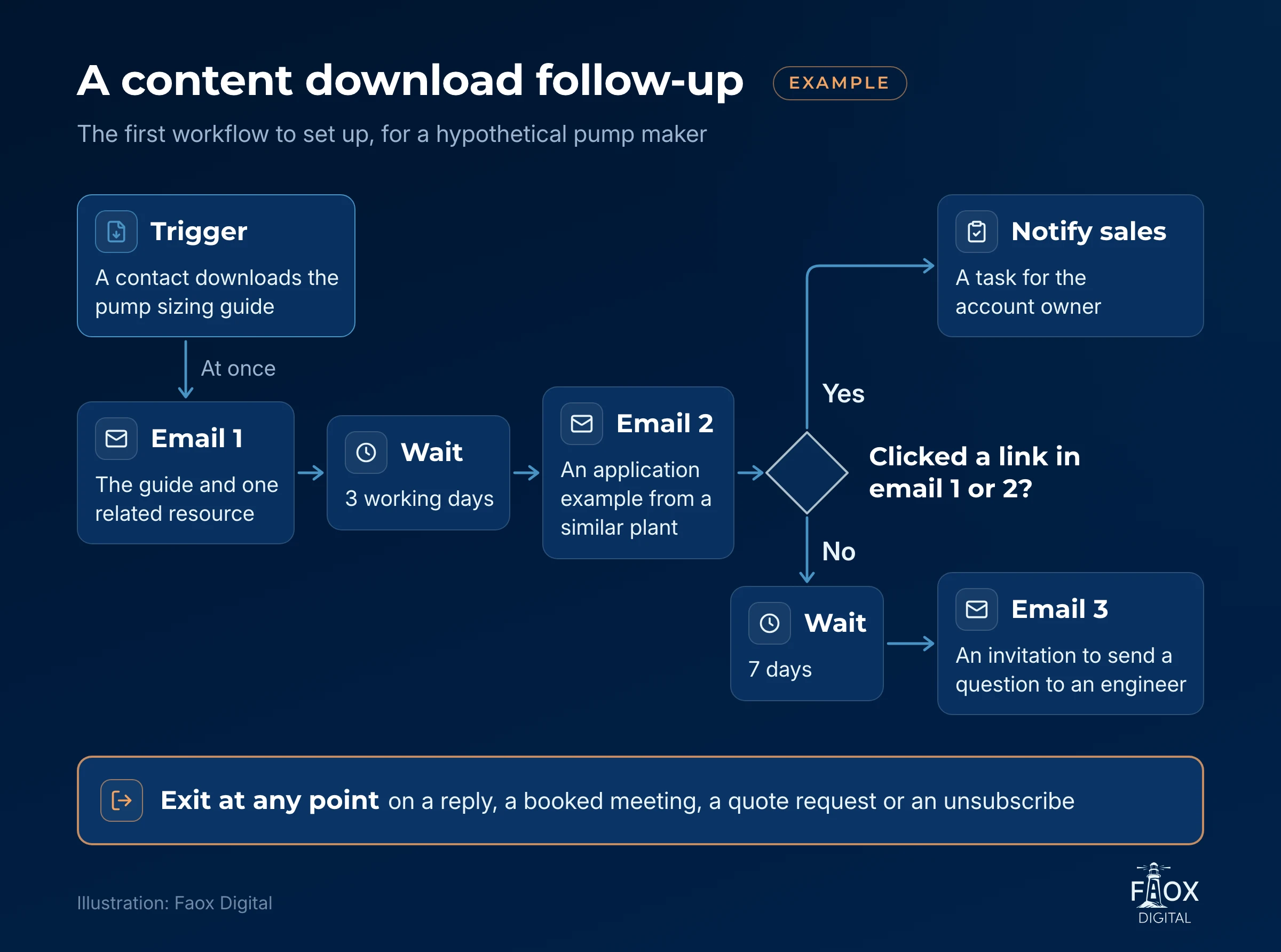
Start with workflows that follow up something the contact has just done. The first one, for a hypothetical pump maker, is a content download follow-up:
- Trigger: a contact downloads the pump sizing guide.
- Email 1, at once: the guide and one related resource.
- Wait 3 working days, then email 2: an application example from a similar plant.
- Branch: if the contact clicked a link in email 1 or 2, notify sales with a task for the account owner.
- Otherwise, wait 7 days, then email 3: an invitation to send a question to an engineer.
- Exit at any point on a reply, a booked meeting, a quote request or an unsubscribe.
The second is a trade fair contact import: contacts imported with the fair as their source receive a thank-you email from the salesperson they met within two working days, a relevant example a week later and an invitation to ask a question two weeks after that, before joining the regular newsletter.
The third is a welcome sequence for new newsletter subscribers: a short series that tells them what to expect and points them to your best material. Our welcome email examples show how to write one.
More email automation examples for B2B
Once the first workflows run well, these are the usual next ones. Each has one trigger, a short series and a clear exit:
| Workflow | Trigger | What it sends | Exit rule |
|---|---|---|---|
| Quote follow-up | A deal moves to "quote sent" | A reminder before the quote expires, then a task for the salesperson | The customer replies or the deal closes |
| Sample request | A sample request form | Shipping details, usage tips and a check-in a week after delivery | A reply or an order |
| New customer onboarding | A contact becomes a customer | Documentation, service contacts and training dates | The contact opts out of onboarding emails |
| Maintenance reminder | A set time after an installation | A reminder to plan maintenance and order spare parts | A service booking |
| Re-engagement | No clicks or replies for a set period | One email asking whether they still want to hear from you | A click or reply; otherwise stop emailing |
Drip campaigns and when they are enough
A drip campaign is the simplest form of automation: a fixed series of emails sent on a schedule after a trigger, the same for everyone, with no branches. It is enough for a welcome series or a short course, and it is a good first step for a small team. Move to branching workflows when the next email should depend on what each contact did, such as clicking, replying or reaching a stage in the CRM.
Test before you switch it on
Every workflow needs a test with real records before it goes live:
- Run internal test contacts through every branch
- Check that each email arrives, with working links and unsubscribe
- Try personalization with empty fields to see the fallbacks
- Confirm that the sales notification reaches the right person with the right task
- Trigger an exit rule and check that the contact leaves the workflow
- Check how the workflow interacts with the newsletter and other workflows
After launch, look at the workflow weekly for the first month: who entered, who exited and why, and which emails earn clicks and replies. If your current tool cannot do branches, exit rules or frequency limits, the next question is whether to move to marketing automation software.
Common email automation mistakes
- Workflows without an end, where contacts keep receiving emails long after they replied or bought.
- Several workflows at once, so one buyer gets three emails in a day.
- Branching on opens, which privacy features make unreliable.
- No owner, so emails about discontinued products keep going out for years.
- Too many branches on day one, more than anyone has time to write, test and maintain.
- Alerts for every click, until sales stops reading them.
How Faox Digital sets up email automation
Faox Digital, a digital growth partner for B2B companies in complex and international markets, builds the CRM, the emails and the automations in the client’s own tools, and the client signs them off before anything is switched on. Follow-up then runs automatically once each person is ready, and we judge the workflows by replies, qualified conversations and pipeline.
Key takeaways
- Start each workflow from one clear trigger: a form submission, a content download, a trade fair import, a CRM change or a date.
- Count delays in working days, and branch on clicks, replies and CRM fields, not opens.
- Set exit rules so that contacts leave when they reply, request a quote or become customers.
- Limit how often anyone is emailed across all workflows, and set fallbacks for every personalization field.
- Test every branch and the sales notification before switching a workflow on.
Frequently asked questions
How do you set up email automation?
Choose one trigger, write two to four emails, set delays in working days, add a branch for contacts who click or reply, define exit rules and a frequency limit, set fallbacks for personalization fields, test with internal contacts and connect a sales notification. Then review the results weekly for the first month.
What is an email automation workflow?
It is a set of rules that sends emails and performs actions for each contact automatically: a trigger starts it, delays space the steps, branches send contacts down different paths, and exit rules take them out when they reply or buy.
What is a drip campaign?
A drip campaign is a fixed series of emails sent on a schedule after a trigger, such as a sign-up, with the same content for everyone. It suits welcome series and short courses; branching workflows suit follow-up that depends on what each contact does.
Can you automate marketing emails in Outlook?
Outlook can delay or schedule an individual message and send out-of-office replies, but it has no triggers, branches or unsubscribe handling for marketing sequences. For those, use an email marketing or automation tool connected to your CRM.
Sources
- HubSpot Knowledge Base: Set up an email frequency safeguard, updated November 2026
- Mailchimp Help: Use conditional split rules, accessed November 2026
- Microsoft Support: Delay or schedule sending email messages in Outlook, accessed November 2026
- Apple Support: Use Mail Privacy Protection on iPhone, accessed November 2026
Let’s talk
Have contacts you never follow up with?
Tell us about the list you already have. We will show you how email and CRM can turn it into conversations.