
GA4 Setup for B2B Websites: How to Track Forms and Quote Requests
How to set up GA4 on a B2B website so that form submissions, quote requests and phone and email clicks are counted correctly, from the first tag to testing.
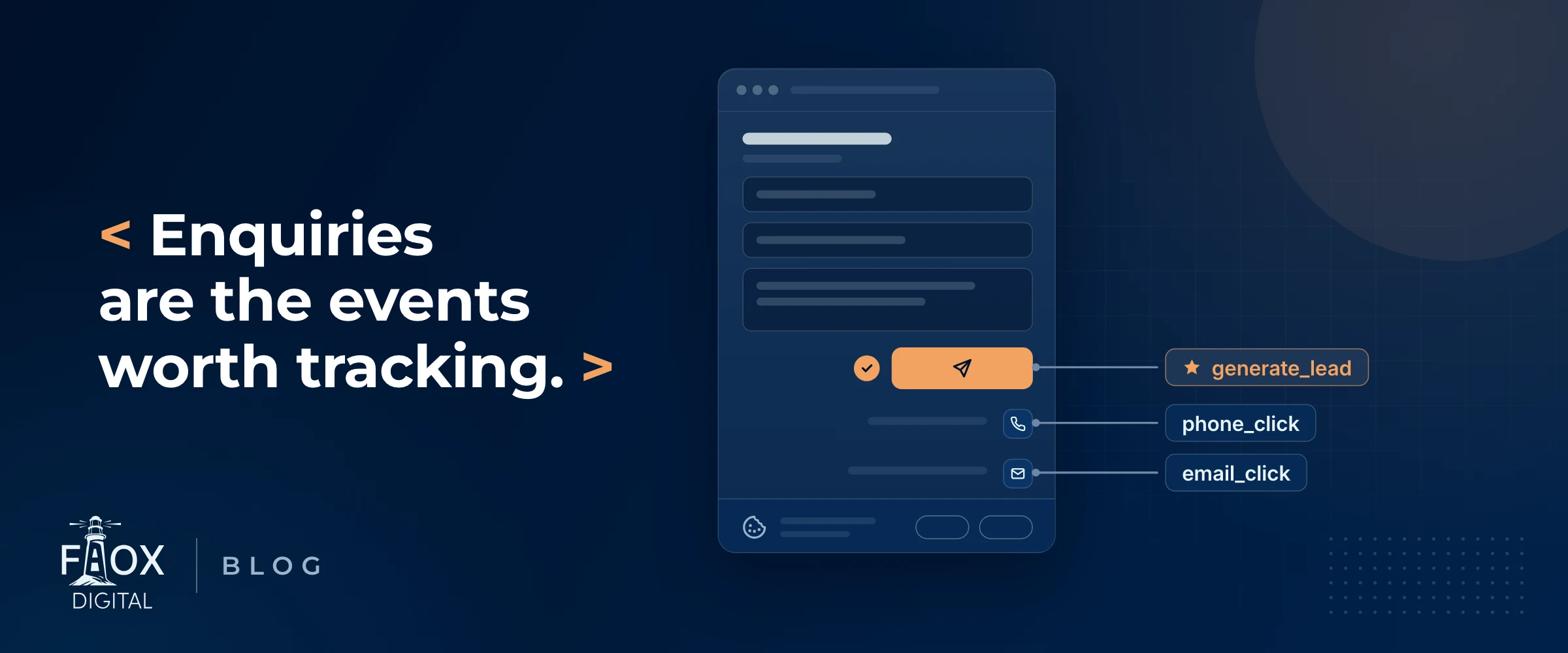
A GA4 setup for a B2B website should measure the actions that lead to sales: form submissions, quote requests, and email and phone clicks. Install GA4 through Google Tag Manager, send a generate_lead event only when a form is successfully sent, and mark it and a few other events as key events. Then tag your campaigns with UTM parameters, link Search Console, exclude internal traffic, handle cookie consent and test everything before you trust the numbers.
Many B2B websites have GA4 installed and still cannot answer a simple question: how many quote requests came from the website last month, and from where? The tag counts page views, but the forms are not tracked, are counted twice, or are mixed up with newsletter sign-ups.
This guide walks through a GA4 setup for a typical B2B site, from accounts and Tag Manager to key events, consent and testing, with a checklist at the end. It is the practical side of our guide to B2B marketing metrics.
What a GA4 setup for a B2B site should measure
On a B2B site, a handful of actions matter far more than page views. Decide on them first, then build the tracking:
| Action | Event | Key event? | How to track it |
|---|---|---|---|
| Quote request sent | generate_lead, with a form name | Yes | A confirmation page or a success event from the form |
| Contact form sent | generate_lead, with a different form name | Yes | The same method as the quote request |
| Phone link clicked | A custom event, such as phone_click | Yes, if calls matter | A Tag Manager click trigger on tel: links |
| Email link clicked | A custom event, such as email_click | Usually | A Tag Manager click trigger on mailto: links |
| Data sheet downloaded | file_download | Optional | Enhanced measurement |
| Form started | form_start | No | Enhanced measurement |
Google lists generate_lead among its recommended events, for when a user submits a form or a request for information, as part of a set of lead events it recommends for business-to-business sales. Using the recommended name rather than an invented one feeds GA4’s Lead acquisition report.
Before you start: accounts, property and access
Create the GA4 account in your company’s name, not your agency’s or a freelancer’s, so the data stays with you if they leave. Inside it, create a property for the website with your reporting time zone and currency, and a web data stream for the site’s domain.
Then give people the access they need and no more. Keep at least one Administrator in your own team; an agency usually needs Editor or Marketer access. If an outside partner will do the work, put these requirements in writing; our guide on how to brief an agency shows what else to include.
Install GA4 with Google Tag Manager
You can paste the Google tag into every page, but for most B2B sites Google Tag Manager is the better choice: you add one container to the site once, then manage GA4 and its events in Tag Manager without changing the site’s code each time. In Tag Manager, set up the Google tag with your GA4 measurement ID, then add a "Google Analytics: GA4 Event" tag for each event, with a trigger that says when it fires.
Turn on enhanced measurement in the data stream settings (Admin, Data streams). It records page views, scrolls, outbound clicks, file downloads and form interactions without extra work. Outbound clicks cover links that lead to another website, so email and phone links need events of their own.
How to track form submissions and quote requests
This is where most setups go wrong. A form submission should count only when the form was actually sent, and a quote request must not be mixed up with a newsletter sign-up. There are three dependable ways to catch a successful submission:
- A confirmation page. If the form leads to its own thank-you address, fire the event when that page loads. It is simple, as long as nobody can reach the page another way.
- Tag Manager’s form submission trigger. With "Check Validation" selected, Google says the trigger fires only if the form is successfully sent; without it, it fires on every attempt. Test it with your form first, because some forms send their data in the background in a way the trigger may not see.
- A success event from the form. Your developer adds a data layer event when the server accepts the form, and Tag Manager listens for it. This is the most reliable option for custom forms.
Whichever you choose, send generate_lead with a parameter that names the form, such as quote or contact, and register that parameter as a custom dimension so that it appears in reports. Never send names, email addresses or phone numbers to GA4: Google requires that no personally identifiable information is collected.
Enhanced measurement’s form_start and form_submit are still useful, because comparing them shows how many people start a form and do not send it. But Google describes form_submit only as firing when a user submits a form, so it cannot tell a successful quote request from a failed attempt or a newsletter box. Keep it out of your key events.
What the form itself should ask, and what happens after it is sent, are covered in our guides to the request a quote page and to lead capture forms.
Email and phone clicks
Email and phone clicks are signals of intent: someone wanted to reach you. In Tag Manager, create a click trigger of the type "Just Links" that fires when the Click URL starts with mailto:, and another for tel:. Connect each to a GA4 event tag, such as email_click and phone_click.
A click is not a sent email or a completed call, so report these clicks separately from form submissions. Mark phone clicks as a key event only if phone enquiries matter in your business.
Key events and conversions in GA4
A key event, in Google’s definition, is an event that measures an action particularly important to the success of your business. Mark your form and click events as key events in Admin, under Data display and Events, by clicking the star next to each. You can also create a key event there before the event has arrived. At the time of writing (November 2026), Google allows up to 30 key events in a standard property, so the discipline lies in keeping the list short.
The word conversion now means something narrower. Since Google aligned GA4’s definitions with Google Ads, a conversion is an action you use to measure ad campaigns and optimize bidding, created from your key events. If you run ads, you will need conversions; if you do not, key events are all you need.
For the rest of the sales journey, Google recommends further lead events, such as qualify_lead, working_lead and close_convert_lead, which can be sent when your CRM records those steps. That takes development work, but it lets GA4 report on qualified leads and customers, not only on form fills.
UTM parameters and the Search Console link
UTM parameters tell GA4 where a visit came from when it cannot tell by itself, for example from a link in an email, a PDF or a LinkedIn post. Google advises always using utm_source, utm_medium and utm_campaign, with one lowercase naming convention, because GA4 treats values with different capitals as different values. Keep the convention in a shared sheet, so that everyone tags links the same way.
The Search Console link brings search queries and landing pages into GA4. In Admin, under Product links, choose Search Console links; you need the Editor role in GA4 and must be a verified owner of the Search Console property. At the time of writing, the Search Console reports are unpublished by default, so publish them from the Library; Google notes that Search Console keeps 16 months of data. How to interpret those numbers is the subject of our guide to reading an SEO report.
Clean data: internal traffic and data retention
Your own team visits the website often, and on a B2B site with modest traffic those visits can distort the numbers. Define your office IP addresses as internal traffic (Admin, Data streams, your stream, Configure tag settings, Define internal traffic), then create a data filter that excludes it. Start the filter in the testing state: once it is active, Google warns, the excluded data is gone for good.
Then set data retention for user-level and key event data to 14 months, the longest option in a standard property. The setting limits how far back explorations can look; standard reports are not affected.
Test before you trust the numbers
- Use preview mode. In Tag Manager’s preview, send a test form and check that each tag fires once, at the right moment.
- Watch DebugView and Realtime. GA4’s DebugView and Realtime report show events as they arrive, with their parameters.
- Send real requests. Submit the quote form from a phone and a computer, in every language version, and click the phone and email links.
- Check for duplicates. One quote request should create one
generate_lead, not one per page reload. - Compare with your inbox or CRM. After a week or two, the number of key events should roughly match the requests your team received.
- Write it down. Record every event, trigger and key event in a short document, so that the next person can maintain it.
GA4 setup checklist
- GA4 account and property in the company’s name, with the right time zone and currency
- Google Tag Manager on every page, with the Google tag set up
- Enhanced measurement turned on
- A
generate_leadevent only for successful quote and contact forms, with a form name parameter - Phone and email link clicks tracked as separate events
- Key events marked: forms first, clicks if they matter
- One UTM naming convention, written down and shared
- Search Console linked and its reports published
- Internal traffic filtered and data retention set to 14 months
- Cookie banner and consent mode in place, confirmed with a lawyer
- Every event tested and documented
What to do with the data
Good tracking is a means, not an end. Once quote requests are counted correctly by source, you can start calculating marketing ROI over a full sales cycle and check, channel by channel, whether your B2B marketing strategy is working. The next question is usually where to spend more: our guide to marketing budget allocation helps you decide.
How Faox Digital approaches GA4 setup and measurement
Faox Digital, a digital growth partner for B2B companies in complex and international markets, starts its SEO work with an audit and a baseline of where the company stands, so that later results can be compared with a clear starting point. In email and CRM work, we measure replies, qualified conversations and pipeline.
Key takeaways
- A B2B GA4 setup should count quote requests, contact forms and phone and email clicks correctly, not just page views.
- Install GA4 through Google Tag Manager, and send
generate_leadonly when a form is successfully sent. - Mark only the actions that matter as key events; conversions are for Google Ads.
- Tag campaigns with UTM parameters, link Search Console, filter internal traffic and set data retention to 14 months.
- Plan cookie consent with a lawyer, and test every event before you trust the numbers.
Frequently asked questions
How do you set up GA4 for a website?
Create a GA4 account and property in your company’s name, add a web data stream and install the tag, ideally through Google Tag Manager. Turn on enhanced measurement, set up events for your forms and contact links, mark the important ones as key events, link Search Console and test everything in DebugView.
How do you set up conversion tracking in GA4?
In GA4, the actions you track are called key events: create the event, then mark it with the star in Admin, under Data display and Events. Conversions are now the actions you use in Google Ads, created from your key events, so you only need them if you run ads.
Is there a GA4 setup assistant?
Google’s former Setup Assistant help page now leads to Task Assistant. Click Tasks at the bottom of the left menu to see setup tasks, from data collection to linking accounts. You need the Administrator, Editor or Marketer role to use it.
Should you pay someone to set up GA4?
A basic setup is within reach of a careful in-house team. Outside help pays off for Tag Manager events, consent mode and the connection to your CRM. Whoever does it, keep the accounts in your company’s name and ask for written documentation of every event.
Sources
- Google Analytics Help: Mark events as key events, accessed November 2026
- EUR-Lex: Directive 2002/58/EC (ePrivacy Directive), Article 5(3), consolidated version of December 2009
- KVKK: Guide on Cookie Practices (Çerez Uygulamaları Hakkında Rehber), July 2025
Let’s talk
Not sure where to start?
Tell us about your business and your goals. We will suggest first steps that fit your budget, even if that means doing some of it yourself.