
SPF, DKIM and DMARC Explained: How to Set Them Up for Your Domain
What SPF, DKIM and DMARC do, the order to set them up in, the steps for Google Workspace, Microsoft 365 and email marketing tools, how alignment and DMARC reports work, and how to check the result.

SPF, DKIM and DMARC are three DNS records that prove your emails really come from your domain. SPF lists the servers allowed to send for it, DKIM adds a signature that receivers can check, and DMARC tells receivers what to do when a message fails and sends you reports. Set them up in that order, for every service that sends as your domain; start DMARC at p=none, and tighten it to quarantine and reject only when the reports show your legitimate mail passing and aligned.
If your company sends email from its own domain, SPF, DKIM and DMARC are no longer optional. Gmail, Yahoo and Microsoft require them from bulk senders, and without them your emails are easier to fake and more likely to be filtered. Our guide to why emails land in spam covers the wider picture and the providers’ rules; this guide covers the records themselves.
It explains what each record does, the order to set them up in, the steps for Google Workspace, Microsoft 365 and an email marketing tool, how to roll out DMARC safely and how to check the result. The steps follow the providers’ own documentation at the time of writing (November 2026) and the current DMARC standard, RFC 9989, published in May 2026. Screens change, so check your provider’s current instructions as you go.
SPF, DKIM and DMARC explained
All three live in your domain’s DNS, the public directory that tells the internet where your website and email are. Most are TXT records: a name and a short line of text. You add them wherever your DNS is managed, usually at your domain registrar or web host. If you are not sure who that is, our article on business website hosting explains how domain, DNS and email fit together.
- The SPF record (Sender Policy Framework) names the servers and services that may send email for your domain.
- A DKIM signature (DomainKeys Identified Mail) is added to each message by the sending service. The receiver looks up the matching public key in your DNS, under a name called a selector, and checks that the message was not changed on the way.
- A DMARC policy (Domain-based Message Authentication, Reporting and Conformance) tells receivers what you want done with messages that fail, and asks them to send you reports.
SPF, DKIM and DMARC alignment
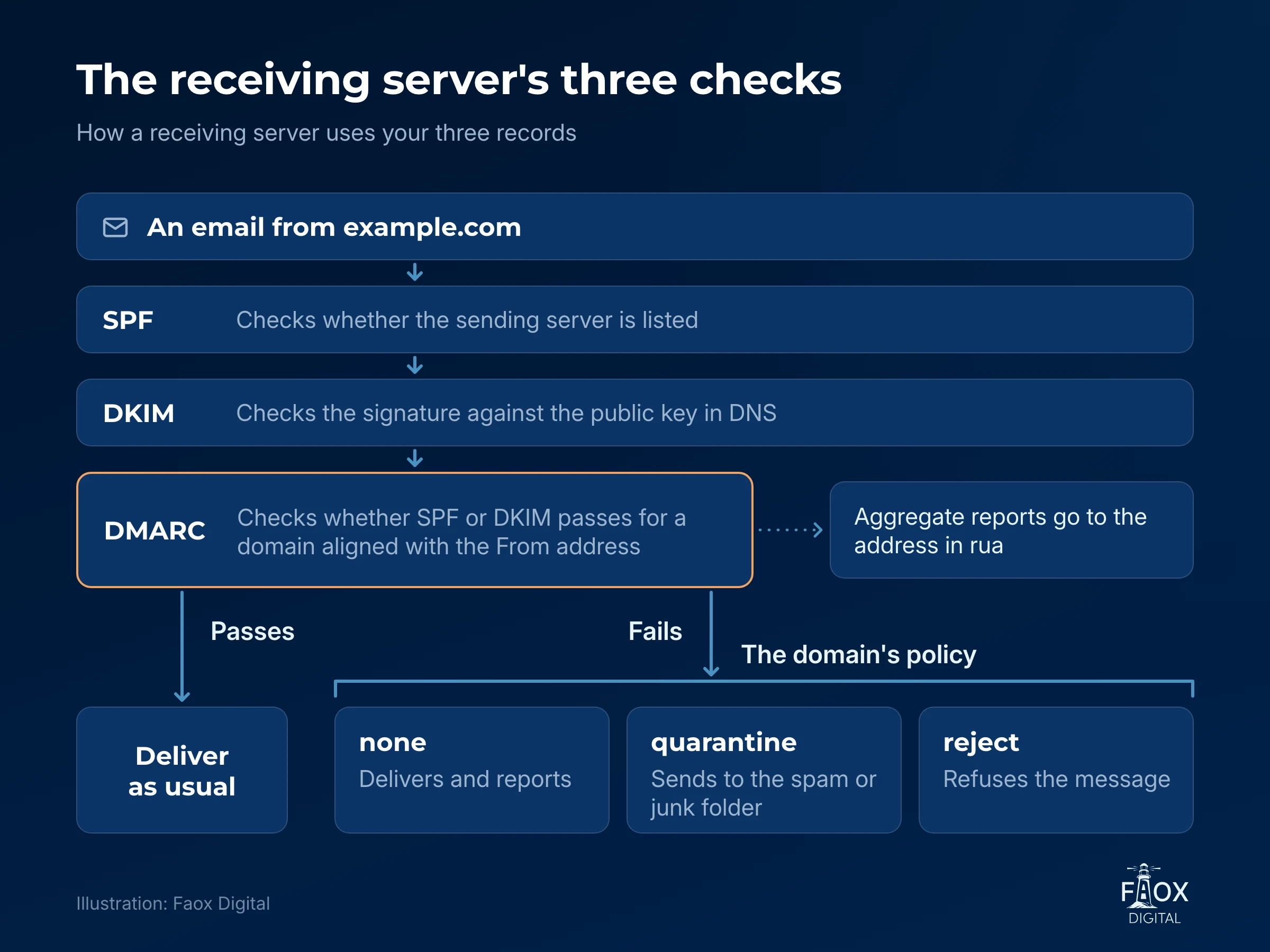
DMARC adds one rule that catches many companies out: alignment. A message passes DMARC only if SPF or DKIM passes for a domain that matches the domain in the From address the reader sees.
- SPF checks the domain in the hidden return address used for bounces, which many email services set to their own domain. SPF can then pass for the service’s domain and still not align with yours.
- DKIM aligns when the service signs with your domain. That is why email tools ask you to add their DKIM records to your DNS.
By default, RFC 9989 uses relaxed alignment, so a subdomain such as news.example.com aligns with example.com; strict alignment, set with adkim=s and aspf=s, requires an exact match. In practice, make sure every service that sends as your domain signs with DKIM for your domain.
Before you start: list every service that sends as your domain
The most common reason for failing DMARC is a forgotten sender. Before you touch DNS, list everything that sends email with your domain in the From address:
- Your mail platform, such as Google Workspace or Microsoft 365
- Your email marketing tool and any newsletter service
- Your CRM, if it sends emails or sequences
- Website forms, the online shop and the web server
- Invoicing, ERP and support desk systems
- Any agency or partner sending on your behalf
Ask each one for its SPF value and its DKIM instructions. If you are implementing a CRM that sends email in your name, add its records as part of the project, not after the first complaints.
How to set up SPF, DKIM and DMARC: the order
- List every sender, as above, and find out who manages your DNS.
- Publish one SPF record that includes every service.
- Turn on DKIM in each service, so each one signs with your domain.
- Wait and check. Google advises letting SPF and DKIM authenticate for at least 48 hours before turning on DMARC.
- Publish DMARC at p=none with an address for reports.
- Read the reports and fix every legitimate source that fails.
- Tighten the policy to quarantine, then reject.
How to set up SPF
An SPF record starts with v=spf1, lists the senders with include: or IP addresses, and ends with a rule for everything else. If Google Workspace is your only sender, Google’s help gives this record:
v=spf1 include:_spf.google.com ~all
For Microsoft 365, Microsoft’s documentation says most organizations need spf.protection.outlook.com as an include. Three rules apply whatever you use:
- One SPF record per domain. The SPF specification, RFC 7208 (2014), forbids multiple records for one domain. Add new senders to the existing record instead of creating a second one.
- At most 10 DNS lookups. Each include and some other terms trigger lookups, and under RFC 7208 the check fails with an error above 10. Nested includes count too, so fewer than ten include tags can already be too many. Remove services you no longer use.
- Choose the ending.
~all(soft fail) asks receivers to treat mail from other servers as suspicious;-all(hard fail) asks them to reject it. Google recommends~all; Microsoft recommends-allfor Microsoft 365 domains, because DKIM and DMARC should be in place as well.
Each subdomain that sends email needs its own SPF record, and Google says it can take up to 48 hours for SPF to start working. Domains you own but never use for email can publish v=spf1 -all, which Microsoft suggests for parked domains, so nobody is allowed to send as them.
How to set up DKIM
Every service that sends as your domain needs its own DKIM key, published under its own selector, so you can have several DKIM records at once.
Google Workspace
In the Google Admin console, go to Apps, then Google Workspace, then Gmail, and open Authenticate email. Generate a new record, choosing a 2048-bit key if your DNS host supports it; Google’s default selector is google. Add the TXT record it shows at google._domainkey in your DNS, wait for it to take effect (Google says up to 48 hours), then click Start authentication.
Microsoft 365
Microsoft 365 publishes DKIM through two CNAME records, selector1._domainkey and selector2._domainkey, whose values are specific to your organization. Find them in the Microsoft Defender portal under Email authentication settings, on the DKIM tab, add them to your DNS, then switch on signing for the domain. Mail from the default onmicrosoft.com domain is signed automatically, but mail from your own domain needs these records.
Your email marketing tool
An email marketing tool usually asks you to authenticate your domain by adding records it generates. Mailchimp, for example, asks for two CNAME records and a TXT record for DMARC, and says validation can take up to 48 hours. Do this before your first campaign; our guide to creating a B2B newsletter covers the rest of the setup.
How to set up DMARC: none, quarantine and reject
A DMARC record is a TXT record at _dmarc on your domain. A first record might read:
v=DMARC1; p=none; rua=mailto:[email protected]
The p tag sets the policy, and rua names the address that receives aggregate reports. RFC 9989 defines the none, quarantine and reject policies; this is how they work in practice:
| Policy | What it asks receivers | When to use it |
|---|---|---|
| p=none | No preference: deliver as usual, but report | At the start, while you find every sender |
| p=quarantine | Treat failing mail as suspicious, often by sending it to spam or junk | Once the reports show your legitimate mail passing |
| p=reject | Treat failing mail as not valid; receivers typically refuse it | Once quarantine has run without problems |
Move one step at a time. Microsoft’s documentation suggests starting with a domain or subdomain that sends little mail, going from none to quarantine to reject while watching the reports, and doing the main domain last.
Older guides, and some providers’ help pages, use a pct tag to apply the policy to a share of messages. RFC 9989 retires it and adds a simple testing flag, t=y, so do not rely on percentages. Two other tags matter: sp sets a separate policy for subdomains, and adkim and aspf switch alignment from relaxed to strict.
Reading DMARC reports
DMARC reports show who is sending email as your domain and whether it passes. Aggregate reports, requested with rua, come from receivers such as Gmail, usually once a day, as XML files that are hard to read by hand; a DMARC reporting service, free or paid, turns them into tables. Failure reports, requested with ruf, describe single messages, but Gmail does not send them.
Send reports to a dedicated mailbox or group, then look for three things: your own services failing (fix their SPF or DKIM), services you do not recognize (find out who uses them) and strangers sending as your domain, which is the reason to move to reject.
Subdomains for marketing email
Many companies send marketing email from a subdomain, such as news.example.com, to keep it apart from everyday mail. Microsoft recommends a subdomain for bulk email services that are not under your direct control, so that problems with that mail do not affect the reputation of mail sent by employees from your main domain.
A sending subdomain needs its own SPF record, DKIM set up in the sending tool and, if you want a different policy, its own DMARC record or an sp tag on the main domain. Without them, the main domain’s DMARC policy applies to the subdomain too.
How to check SPF, DKIM and DMARC
Check the result before you rely on it:
- Look up the records with a DNS lookup tool, and confirm there is one SPF record, a DKIM record for each selector and one DMARC record.
- Send a test message to a Gmail or Google Workspace address outside your domain; Google notes that you cannot verify DKIM by sending a message to yourself.
- Open the headers. In Gmail, click More next to Reply, then Show original, and find the Authentication-Results line, which should show a pass for DKIM, SPF and DMARC. Google Admin Toolbox’s Messageheader tool analyzes a pasted header.
- Repeat for each sender: the mail platform, the email tool, the CRM and the website.
Then read the DMARC reports every week until every legitimate source passes, and monthly after that. Authentication helps your emails arrive; whether people read and act on them is a separate question, covered in our article on metrics beyond open rate.
Common mistakes and how to fix them
- Two SPF records: merge them into one.
- Too many DNS lookups: remove services you no longer use, or ask a provider for a leaner include.
- A tool that signs with its own domain: finish its domain authentication, so DKIM aligns with yours.
- Jumping straight to reject: go back to none or quarantine until the reports are clean.
- Reports nobody reads: send them to a shared mailbox or a reporting service, and give someone a monthly check.
- Forgotten domains: protect parked domains with
v=spf1 -alland a DMARC policy of their own.
If emails still land in spam after all this, or the reports show problems you cannot explain, the next step is a deliverability audit.
How Faox Digital handles email authentication
Faox Digital, a digital growth partner for B2B companies in complex and international markets, sets up the CRM, the emails and the automations in the client’s own tools, and the client signs off the setup. The work starts with an audit of the list, the CRM and past sends, and continues with a steady sending rhythm and healthy deliverability, judged by replies, qualified conversations and pipeline.
Key takeaways
- SPF lists your senders, DKIM signs your messages and DMARC sets your policy and sends reports; all three are DNS records.
- List every service that sends as your domain first, then publish one SPF record and turn on DKIM in each service.
- DMARC passes only when SPF or DKIM passes for a domain aligned with the From address, so make every tool sign with your domain.
- Start DMARC at p=none, read the reports, then move to quarantine and reject one step at a time.
- Check with a test to an outside Gmail address and the message headers, and keep reading the reports.
Frequently asked questions
How do SPF, DKIM and DMARC work together?
SPF checks that the sending server may send for the domain, DKIM checks a signature added to the message, and DMARC checks that at least one of them passes for a domain matching the From address. DMARC then applies your policy and sends you reports.
How do I set up SPF, DKIM and DMARC in Office 365?
In Microsoft 365, add an SPF record that includes spf.protection.outlook.com, add the two DKIM CNAME records shown in the Microsoft Defender portal and switch on signing, then publish a DMARC record at _dmarc, starting with p=none. Microsoft’s documentation covers each step.
How can I check if SPF, DKIM and DMARC are working?
Send a test email to an outside Gmail address, open it with Show original and check the Authentication-Results line for pass results. Then read your DMARC aggregate reports, which show every source sending as your domain.
How long do SPF, DKIM and DMARC take to work?
Google says DNS changes for SPF and DKIM can take up to 48 hours, and advises 48 hours of working SPF and DKIM before turning on DMARC. Moving DMARC from none to reject takes as long as it takes to make every legitimate sender pass, which depends on how many services send as your domain.
Sources
- RFC 9989: Domain-Based Message Authentication, Reporting, and Conformance (DMARC), May 2026
- Google Workspace Help: Set up DMARC, updated November 2026
- Microsoft Learn: Set up SPF to identify valid email sources for your Microsoft 365 domain, updated July 2026
- Mailchimp Help: Set up email domain authentication, accessed November 2026
Let’s talk
Have contacts you never follow up with?
Tell us about the list you already have. We will show you how email and CRM can turn it into conversations.