
How to Create a LinkedIn Company Page: A Setup Checklist for B2B
Everything a B2B company sets up before its LinkedIn page goes live, from the account you need and the fields in the form to images, admins, verification, employees and the first posts.
To create a LinkedIn company page, sign in to your personal profile on a computer or an iPhone, click For Business, then Create a Company Page, and fill in the name, page URL, website, industry, size, logo and tagline. Before you share it, complete the About section, add a second super admin, connect your employees, publish a few posts and verify the page if LinkedIn offers it.
Buyers who look your company up before a meeting may check its LinkedIn page, and a hurried setup with a blurred logo and an empty About section raises questions instead of answering them.
This checklist covers the setup; running the page once it is live is covered in our LinkedIn company page guide.
What you need before you create the page
A LinkedIn page is free, but it can only be created from a personal account. At the time of writing (November 2026), LinkedIn’s Help Center sets these conditions:
- A personal profile in your real name. A profile cannot be converted into a page, and a profile opened in the company’s name can be restricted, because profiles must represent real people.
- An established account: a confirmed email address, more than one connection and, for a new account, a wait of at least a day.
- A verified workplace, in some cases, through your work email or Microsoft Entra Verified ID.
- The right to act for the company, which you confirm in the form. Whoever creates the page becomes its first super admin.
So the page should be created by someone employed by the company who will stay responsible for it, not by an agency or a freelancer.
Search LinkedIn for your company name first. If a page exists, request admin access rather than creating a duplicate. If it carries a banner saying LinkedIn created it, it is a Listing Page: a current employee can claim it with Claim this page, which removes the banner.
Step by step: how to create a LinkedIn company page
On a computer, LinkedIn company page creation takes six steps:
- Open the form. Click the For Business icon at the top right of your homepage, then Create a Company Page.
- Choose the page type. Select Company, not Showcase page or Educational institution.
- Fill in the form: page identity (name, public URL, website), company details (industry, size, type) and profile details (logo, tagline).
- Confirm your authority by ticking the box that says you may act on behalf of the company.
- Click Create page. An error usually means a page with the same name, a URL in use, too few connections or an unverified workplace.
- Click Start building your page! and complete the remaining sections before you share it.
On an iPhone, open any page in the LinkedIn app, tap the More icon and choose Create a LinkedIn Page. At the time of writing, Android devices cannot create pages.
Showcase Pages, for a brand or business unit, and Product Pages can be added only once the company page exists.
What to enter in each field
Get these right at the start; some are harder to change later.
| Field | What to enter | Watch for |
|---|---|---|
| Company name | The name buyers know you by | A page with that name may already exist |
| LinkedIn public URL | linkedin.com/company/ plus your name | Changeable only once in 30 days |
| Website | Your homepage, in your buyers’ main language | The link opens the right version |
| Industry | The closest option in LinkedIn’s list | Categories follow the North American NAICS standard |
| Company size | The range that matches your headcount | Employees shown on the page come from their own profiles |
| Logo | A square logo, 400 x 400 pixels | Shown on light and dark backgrounds |
| Tagline | What you make and for whom | One line, read at a glance |
Your page URL. At the time of writing, LinkedIn’s best practices say the address uses lowercase letters, numbers and single hyphens, cannot be numbers only, and cannot start or end with a hyphen. If your name is taken, add a word, such as your product or country, rather than an acronym another company could share. You can change it under Edit page and Page info; the old address redirects until another page claims it.
Logo and banner size for a LinkedIn company page
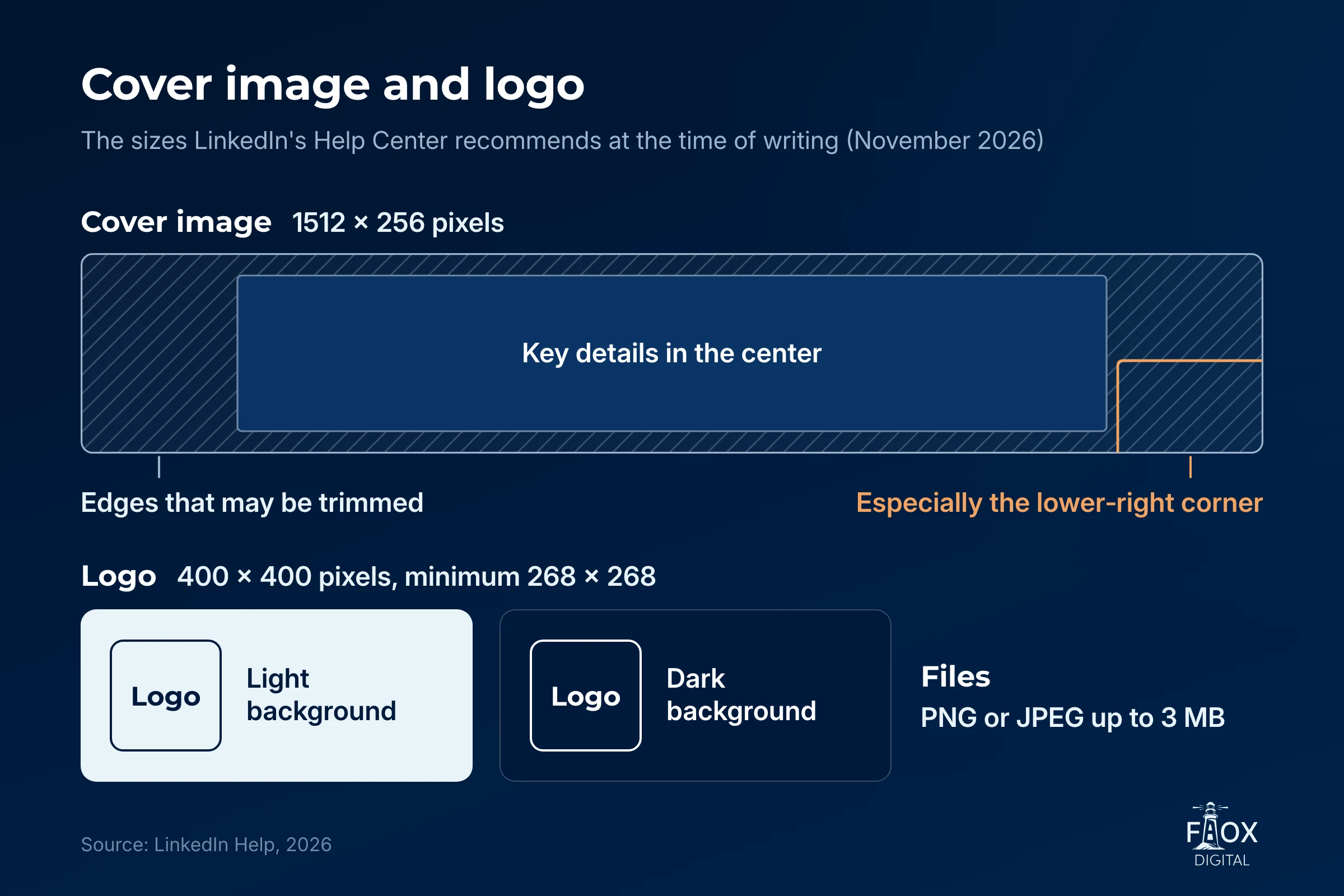
LinkedIn calls the banner the cover image. At the time of writing (November 2026), its Help Center recommends:
- Logo: 400 x 400 pixels, minimum 268 x 268.
- Cover image: 1512 x 256 pixels, both minimum and recommended.
- Files: PNG or JPEG up to 3 MB; a high-resolution JPEG gives the sharpest result.
Screens trim the cover differently, so keep text to a minimum and key details in the center, away from the edges and especially the lower-right corner. A transparent logo is shown on white, and logos appear on light and dark backgrounds, so test both. Show something real, such as your plant, a product at work or your team. A slideshow of cover images needs the paid Premium Company Page.
Write the tagline and the About section
The tagline sits under your company name and works like a headline: "Hydraulic cylinders built to order for mobile machinery makers" tells a buyer more than "Excellence in engineering". LinkedIn Learning’s 2023 course Growing Your Business with LinkedIn Pages gives limits of 120 characters for the tagline and 2,000 for the overview.
The overview is the description in your About section. Write it for a buyer who has never heard of you: what you make, which problems it solves, for which industries and markets, and which certificates buyers check, in the words they search for. Add every location that matters, with the head office as primary.
At the time of writing, LinkedIn’s Help Center says industry, company size and overview are required before you can invite people to follow, and that complete pages potentially receive 30% more weekly views.
Add admins and decide who controls the page
At the time of writing, LinkedIn pages have three admin roles:
- Super admin: every permission, including page details, admins and deactivation.
- Content admin: posts, events, jobs, messages, employee notifications and analytics, but not page details or admins.
- Analyst: viewing and exporting analytics.
A super admin adds admins under Settings and Manage admins. The person must be a first, second or third-degree connection who follows the page, and holds one page admin role; paid media roles for ads are separate. Keep at least two super admins inside the company, because LinkedIn cannot replace or remove admins for you. Give agencies and freelancers the content admin role, ask every admin to turn on two-factor authentication, and update the list when someone leaves.
How to verify a LinkedIn company page
A verification badge shows that LinkedIn has confirmed the page represents the real organization, not that all its content is accurate or that LinkedIn endorses the organization or its activities. Not every page can request one. At the time of writing, LinkedIn’s Help Center says eligibility may depend on regular posting and replies and on a paid relationship such as Ads, Jobs or a Premium Company Page (not a free trial); when it decides, LinkedIn also weighs accurate details such as location and website, an active admin, a claimed page and compliance with its policies.
If your page qualifies, a super admin opens Settings, then Verification controls, on a computer. LinkedIn then asks either for a 15-minute code sent to your work email, or for your legal business name, website and address plus a DNS record proving you control the domain, published within five days. LinkedIn says the domain check can take up to 48 hours and the review up to ten days. No Verification controls option means the page is not eligible yet. Once verified, you can add your email domain so employees can verify their workplace.
Connect your employees to the page
Employees appear on the page when they add a position to the Experience section of their profile and pick your company from the list as they type. Admins cannot add them, and LinkedIn says the count can take up to 30 days to update.
Update your own profile first, then send colleagues the page link with two requests: link their current position to the page, and follow it. If someone who never worked for you appears, a super admin can report it.
Plan your first posts before you invite anyone
An empty page gives visitors nothing to judge, so publish a few posts before you announce it. Four make a good start:
- An introduction: what you make, for which industries and markets.
- A capability post: photos or a document showing a product, test or production step.
- A practical tip from one of your engineers, credited by name.
- What comes next: a trade fair, webinar or launch.
Then ask colleagues to share the launch post with a line of their own, invite relevant connections from the admin view, and link the page from your website and email signatures. No one can promise a follower count; what matters is whether buyers and people in your industry follow.
Profiles and channels that work with the page
Buyers also look at the people behind the page, so your leaders’ profiles should tell the same story; our executive LinkedIn profile checklist shows what to fix. If you film product demonstrations or how-to videos, YouTube for B2B explains how to set up a channel for them, and our guide to using Instagram in B2B shows when your plant and projects are worth posting there.
A final check before the page goes live
- Name, URL and website match how buyers know you
- The logo is sharp on light and dark backgrounds; the cover keeps key details in the center
- The tagline says what you make and for whom
- Overview, industry, company size and locations are complete
- Two or more super admins work for the company and use two-factor authentication
- Outside helpers have the content admin role
- Verification is requested if the page is eligible
- Employees link their positions to the page
- A few useful posts are live
Once the page runs, the next question is often whether other networks deserve your time. Our article on secondary social channels looks at when Quora and Pinterest earn a place.
How Faox Digital starts work on a LinkedIn company page
Faox Digital, which runs organic social media for B2B companies in complex and international markets, begins any LinkedIn work by listening: what the company already posts, who follows it and what its buyers care about. The point of view, platforms and posting rhythm are then planned market by market and language by language, and the client approves a monthly content calendar before anything goes live.
Key takeaways
- Create the page from a personal profile in your real name, after checking that no page or Listing Page already exists.
- Use a 400 x 400 logo and a 1512 x 256 cover image, and write the tagline and overview in buyers’ words.
- Keep two super admins inside the company and give outside helpers the content admin role.
- Verify the page if you can, connect your employees and post before you invite followers.
Frequently asked questions
Can you create a LinkedIn company page on mobile?
Yes, on an iPhone: open any page in the LinkedIn app, tap the More icon and choose Create a LinkedIn Page. At the time of writing, Android devices cannot create pages, and some admin tasks, such as page verification, work only on desktop.
How do you find your LinkedIn company page URL?
Open the page and copy the address from your browser: linkedin.com/company/ followed by the public URL you chose. Admins can also use the Share Page button. To change it, go to Edit page and Page info; LinkedIn allows one change every 30 days.
Can you create a company page without a personal profile?
No. Pages are created from a member’s account, and a profile cannot be converted into a page. Do not open a profile in the company’s name: LinkedIn may restrict an account that represents a business rather than a person.
How do you get the first followers for a new company page?
Publish a few useful posts, then ask employees to link their profiles and follow, invite relevant connections and link the page from your website and email signatures. Judge progress by who follows, not only how many.
Sources
- LinkedIn Help: Create a LinkedIn Page, accessed November 2026
- LinkedIn Help: Image specifications for your LinkedIn Pages and Career Pages, accessed November 2026
- LinkedIn Help: LinkedIn Page admin roles permissions, accessed November 2026
- LinkedIn Help: LinkedIn Page verification, accessed November 2026
Let’s talk
Want social media that reaches the right people?
Tell us who you want to reach. We will look at your channels and suggest a plan your team can keep up with.