
WordPress Maintenance Checklist: Security, Updates and Backups
The weekly, monthly and quarterly routine that keeps a business WordPress site secure and current, with where to find each setting and what to check.
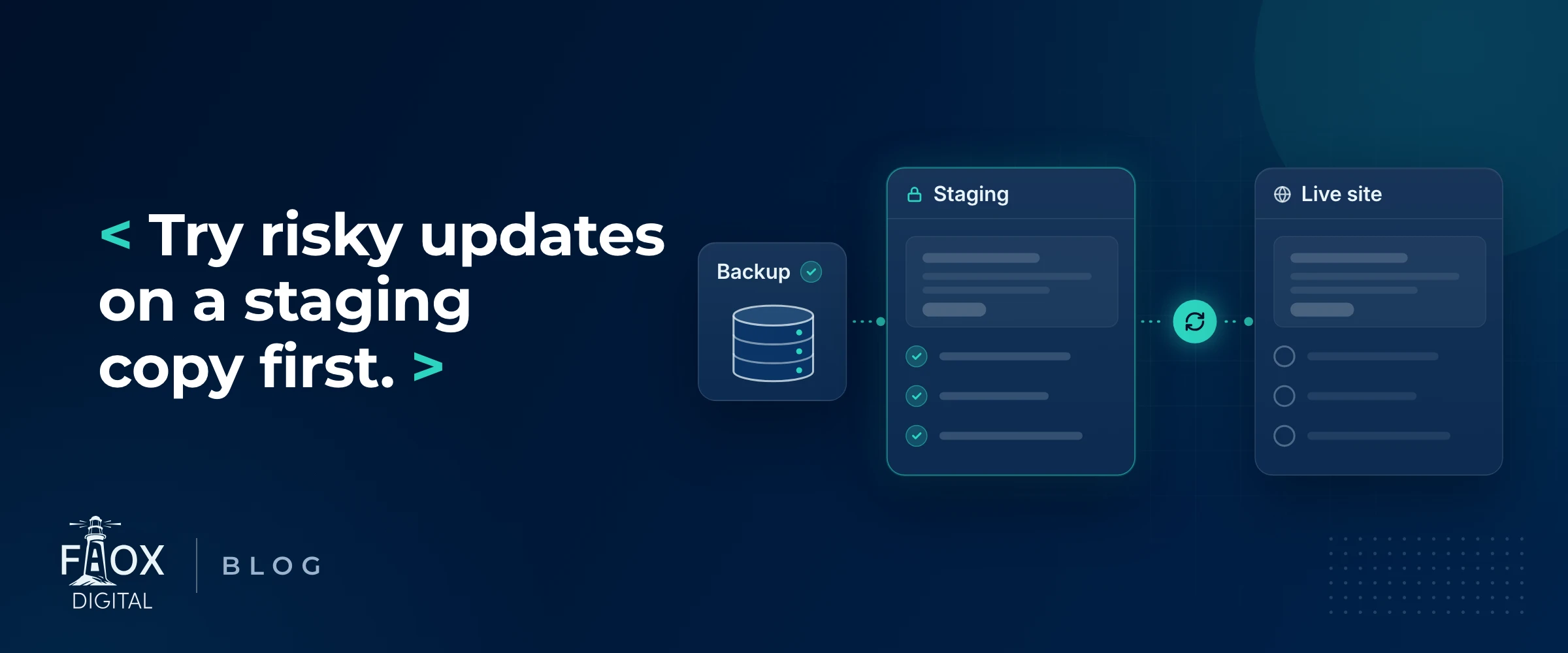
WordPress maintenance is the routine that keeps a WordPress site secure and working: update core, plugins and themes, give each user only the access they need, protect logins with two-step verification, filter attacks with a firewall, scan for malware, take backups and test that they restore, and keep PHP on a supported version. Most of it can be automated, but risky updates should be tried on a staging copy first and checked on the live site afterwards.
WordPress is a sound choice for a business site, and keeping it in good shape is mostly routine. The trouble starts when nobody owns that routine: updates wait, a former employee still has an administrator login, and the backup that everyone assumed was running stopped months ago.
This checklist turns the routine into tasks, each with its place in the dashboard and a rhythm. It assumes a business site with a contact or quote form and a handful of plugins. For why maintenance matters and what it covers beyond WordPress, see our website maintenance guide.
What is WordPress maintenance?
WordPress maintenance covers three layers:
- Core: WordPress itself.
- Extensions: your plugins and theme, where most of the work and most of the risk sit.
- Server: PHP, the database and the hosting account the site runs on.
Who does what depends on your setup. Some hosts take on core updates, backups, a firewall and PHP upgrades, while others leave everything to you, so check what your plan covers before you build your own routine. Our article on business website hosting explains what to look for.
The WordPress maintenance checklist at a glance
The frequencies below are our suggestion for a typical business site. Raise them if the site takes orders or changes daily.
| Task | Where in WordPress | How often |
|---|---|---|
| Install updates for core, plugins and themes | Dashboard > Updates | Weekly, and security releases at once |
| Confirm the backups ran, with one copy away from the host | Backup plugin or host panel | Weekly |
| Read the firewall and malware scan reports | Security plugin or host panel | Weekly |
| Review users and their roles | Users | Monthly |
| Check Site Health | Tools > Site Health | Monthly |
| Review which plugins and themes update automatically | Plugins and Appearance > Themes | Monthly |
| Check that plugins are still maintained, and delete unused ones | Plugins, and each plugin’s WordPress.org page | Quarterly |
| Check the PHP version | Tools > Site Health > Info > Server | Quarterly |
| Check that the administration email reaches a monitored inbox | Settings > General | Quarterly |
| Restore a backup to a staging copy | Staging site | Twice a year |
Core, plugin and theme updates
A WordPress core update is the easiest part, because WordPress has applied automatic background updates since version 3.7, and they are enabled by default on most sites. Major versions deserve a test first. WordPress officially supports only its last major release; earlier ones may or may not get security fixes. On November 10, 2026, WordPress.org’s statistics showed 65.8% of WordPress sites on the current major version, 7.1, so roughly a third were running an older one.
Plugin and theme updates need more thought. Since WordPress 5.5, administrators can turn on automatic updates plugin by plugin and theme by theme, on the Plugins and Themes screens, and WordPress emails a summary after each attempt. Translation files update automatically by default. A sensible split is to let small, low-risk plugins update themselves and to update the plugins that shape pages, forms or languages by hand, after a test. Translation plugins are a good example, and our guide to running WordPress in several languages covers the setups.
For anything you update by hand, follow the same order every time:
- Back up the files and database, and confirm the backup finished.
- Read the changelog for major versions and for plugins that change layout, forms or checkout.
- Update a staging copy first and test it.
- Check the pages that matter: the home page, key product pages, the quote form and the language switcher.
- Update the live site at a quiet time.
- Check the same pages again, submit a test form and watch for error emails.
- Keep the pre-update backup until you are sure nothing broke.
Plugins and themes: fewer, maintained, from trusted sources
The WordPress.org directory alone listed more than 74,000 plugins in November 2026, so choosing well matters as much as updating. Before installing a plugin, and every quarter afterwards, look at its WordPress.org page: when it was last updated, which WordPress version it was tested with, how many sites use it and whether support questions get answers. The directory warns when a plugin has not been tested with the latest three major releases, because it may no longer be maintained.
Delete what you do not use. WordPress’s own hardening guide says to keep plugins updated and to delete any you are not using. A deactivated plugin still sits on the server, so delete it rather than only switching it off. The same goes for old themes, though keeping one default theme as a fallback is reasonable. The number of plugins a site needs is largely settled during the B2B website design process, which is the cheapest moment to keep it low.
User roles and two-step verification
User roles decide what each login can do. WordPress has five on a single site: Administrator, Editor, Author, Contributor and Subscriber. Give each person their own account with the lowest role that does the job: an editor for the marketing team, an administrator only for the few who change plugins and settings. Each month, remove people who have left, check that the default role for new users under Settings > General is the lowest one, and switch off open registration unless you need it.
Two-step verification protects a login even if a password leaks, and WordPress’s hardening guide recommends it as an extra security measure. WordPress core does not include it, so it comes from a plugin. The Two Factor plugin, published on WordPress.org by WordPress.org itself, supports authenticator apps, email codes and backup codes; each user turns it on in their own profile. Many security plugins include login protection as well. Make it compulsory for administrators at least.
Security plugin, firewall and malware scans
A security plugin bundles the main defenses in one place. Wordfence, for example, describes itself as an endpoint firewall and malware scanner with login security features. Choose one security plugin, not several, because overlapping tools slow the site and make problems harder to trace.
A web application firewall (WAF) filters malicious requests before they reach your site’s code, and WordPress’s hardening guide describes three places it can sit:
- In a plugin, either at the server configuration level or as WordPress loads.
- On the web server, where ModSecurity is the most popular open-source option.
- As a cloud service in front of your server, which accepts requests first and passes on only clean ones.
Ask your host which of these you already have.
A malware scan compares your files with known-good copies and looks for known malicious code. Run it weekly, read the results and act on anything new; a scanner that nobody reads protects nothing.
Backups and restore tests
A backup has two parts: the database, which holds your pages, posts, settings and form entries, and the files, which hold uploads, themes and plugins. WordPress’s upgrade instructions say to back up all of your WordPress files and add a detail that is easy to miss: do not forget the .htaccess file.
Set the backup frequency by how often the site changes. If forms store entries or you publish several times a week, back up the database daily; files can follow weekly and before every update. Your host may already take backups, but keep one copy somewhere else. Backup plugins such as UpdraftPlus can schedule backups from every few hours to monthly and send them to cloud storage such as Google Drive, Dropbox or Amazon S3.
A restore test proves the backup works. Twice a year, and whenever you change the backup setup, restore the latest backup to a staging copy and check that pages load and the forms work. Our maintenance guide explains how many copies to keep and where.
PHP version and Site Health
The PHP version is the language version your server runs WordPress on, and it matters for both security and speed. At the time of writing (November 2026), WordPress recommends PHP 8.3 or greater, and PHP 8.2 receives security fixes only until December 31, 2026. Your host changes the version, usually from its control panel. Try the change on staging first, because an old plugin can fail on a newer PHP.
Site Health, under Tools > Site Health, checks much of this for you. Its Status tab sorts findings into critical issues and recommended improvements, such as an outdated PHP version or disabled automatic updates, and its Info tab shows the server details, including the PHP version.
Make sure WordPress can reach you
WordPress sends its warnings to the administration email address under Settings > General, including the summaries after automatic plugin and theme updates. Since version 5.2, it also sends a recovery mode link when a plugin or theme causes a fatal error, so an administrator can log in with the faulty plugin paused and fix it. If that address belongs to a developer who has left, or to an inbox nobody reads, the warnings go nowhere. Use a shared address that someone checks. WordPress’s documentation also notes that this email may be sent directly from your server if the error happens before an email plugin loads, so make sure server email actually arrives.
Use a staging site for anything risky
A staging site is a private copy of your site, ideally on the same kind of server, where you can break things safely. Use it for major WordPress versions, PHP upgrades, new plugins, theme changes and anything that touches forms. Your host may be able to create one in a few clicks; if not, a backup restored to a separate address works too.
Keep it private: protect it with a password, keep it out of search engines and stop it from sending emails to real customers. A test form that reaches a buyer is an awkward way to discover the staging site exists.
How long all this takes depends on the number of plugins, languages and forms. If your team cannot give it time every month, the next question is what a monthly maintenance plan should cover and cost.
How Faox Digital approaches maintenance after launch
For the websites we build, Faox Digital treats hosting and keeping the site fast and healthy after launch as part of support, not as an afterthought. Each site is tested in every language and on every device before anyone outside sees it, and where a company’s own team can run part of the routine, we suggest first steps that fit its budget and stage.
Key takeaways
- Let WordPress install minor core updates automatically, and test major versions and risky plugins on staging first.
- Keep fewer plugins, check that each one is still maintained and delete what you do not use.
- Give every person the lowest role they need, and require two-step verification for administrators.
- Use one security plugin or a host firewall, and read the scan reports.
- Back up the database and files on a schedule, keep a copy away from the host and test the restore.
Frequently asked questions
How do I maintain a WordPress website?
Install updates weekly, with security releases at once, after a backup. Review users and Site Health monthly, check plugins and the PHP version quarterly, and restore a backup to a staging copy twice a year. Read the firewall and scan reports every week.
How do I put a WordPress site into maintenance mode?
WordPress does it by itself during updates: it shows a short "Briefly unavailable for scheduled maintenance" message with a 503 status, which tells search engines the outage is temporary. For planned work, use a maintenance mode plugin or your host’s tool, and check that it also returns a 503 status and still lets administrators log in.
How do I disable WordPress maintenance mode?
If an update was interrupted, WordPress may leave a file called .maintenance in the site’s main folder. WordPress ignores it once it is more than 10 minutes old, and you can delete it with your host’s file manager or SFTP. If a maintenance page stays up longer, a maintenance mode plugin is probably still switched on.
Should plugins update automatically?
For small, well-maintained plugins, usually yes, as long as backups run first. For plugins that shape pages, forms, shops or languages, update by hand after a test on staging, because an automatic update can break a layout or a form when nobody is watching.
Sources
- WordPress Advanced Administration Handbook: Upgrading WordPress, updated October 2026
- WordPress.org Documentation: Roles and capabilities, updated September 2026
- WordPress.org API: Version statistics, November 2026
- PHP: Supported versions, accessed November 2026
Let’s talk
Planning a new website or a fix?
Send us your current site and what you need it to do. We will tell you whether it needs a rebuild or a few focused changes.